

Our sales manager will contact you shortly
Request a callback from our specialist
Want to learn more about our packaging or find the right fit for your business? Request a callback, and our specialist will call you at a time that suits you. Tell us about your product, and we'll help you choose the best option.
Order a callback from a specialist
Want to learn more about our solutions or find the perfect solution for your business? Leave a request for a callback and our specialist will contact you at a convenient time. Together we will find the optimal solution to make your business thrive!
Request a callback from our HR team
Interested in our openings and career opportunities? Leave your contact details and our HR team will get back to you shortly. We'll answer your questions and explain how to join the HTI Group team.
Order a callback from a specialist
Would you like to learn more about our job openings and career opportunities? Leave your contact information, and our HR department will get in touch with you shortly. We will answer all your questions and provide detailed information on how to become part of the HTI Group team.
与我们取得联系
想了解更多我们的解决方案或为您的业务选择完美的解决方案吗?
请留下您的联系方式,我们的专家将尽快与您联系。
让我们一起找到最佳方案,助您的业务蓬勃发展!
请留下您的联系方式,我们的专家将尽快与您联系。
让我们一起找到最佳方案,助您的业务蓬勃发展!
要点电话回拨来自人力资源部门
想了解更多关于我们职位和职业发展的机会吗?请留下您的联系信息,我们的人力资源部门将尽快与您联系。我们将回答您的所有问题,并提供详细信息,帮助您成为HTI Group团队的一员。
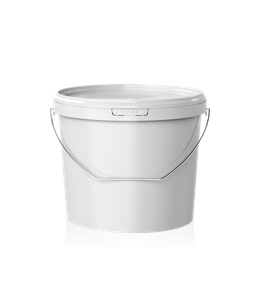 Plastic buckets14 sizes · 560 ml to 21 L
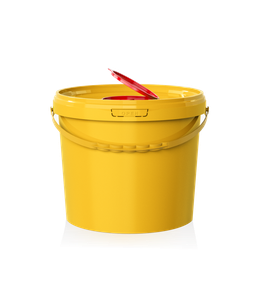 Medical buckets9 sizes · 1 to 21 L
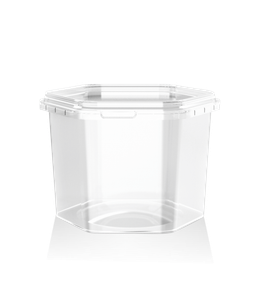 Food containers5 formats · 250 to 750 ml
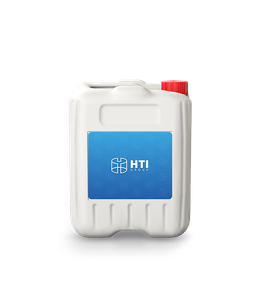 Plastic jerry cans5 L and 10 L
Plastic buckets16 models, 560 ml - 21 L
Medical buckets10 models, 1 - 21 L
Food containers5 models, 250 - 750 ml
Plastic canisters5 and 10 L
塑料桶16 个型号,560 毫升 - 21 升
食品容器5 个型号,250 - 750 毫升
塑料方桶5 升和 10 升
HTI AssistantFind the right packaging for your product in 4 steps
HTI AssistantOnline until 5:00 PM
Hello! We'll suggest the right size for your product, calculate pallets, and quote a price for your order.
Contact the plant
WhatsAppChat with a sales managerCall+996 222 600 292We'll call you backLeave your numberEmailinfo@hti-group.kg
Quick actions
Mon-Fri, 9:00 AM-5:00 PM · Factory in the Bishkek Free Economic Zone, Ak-Chiy village
3D configurator
3D packaging configurator: color, printing, and PDF artwork proof
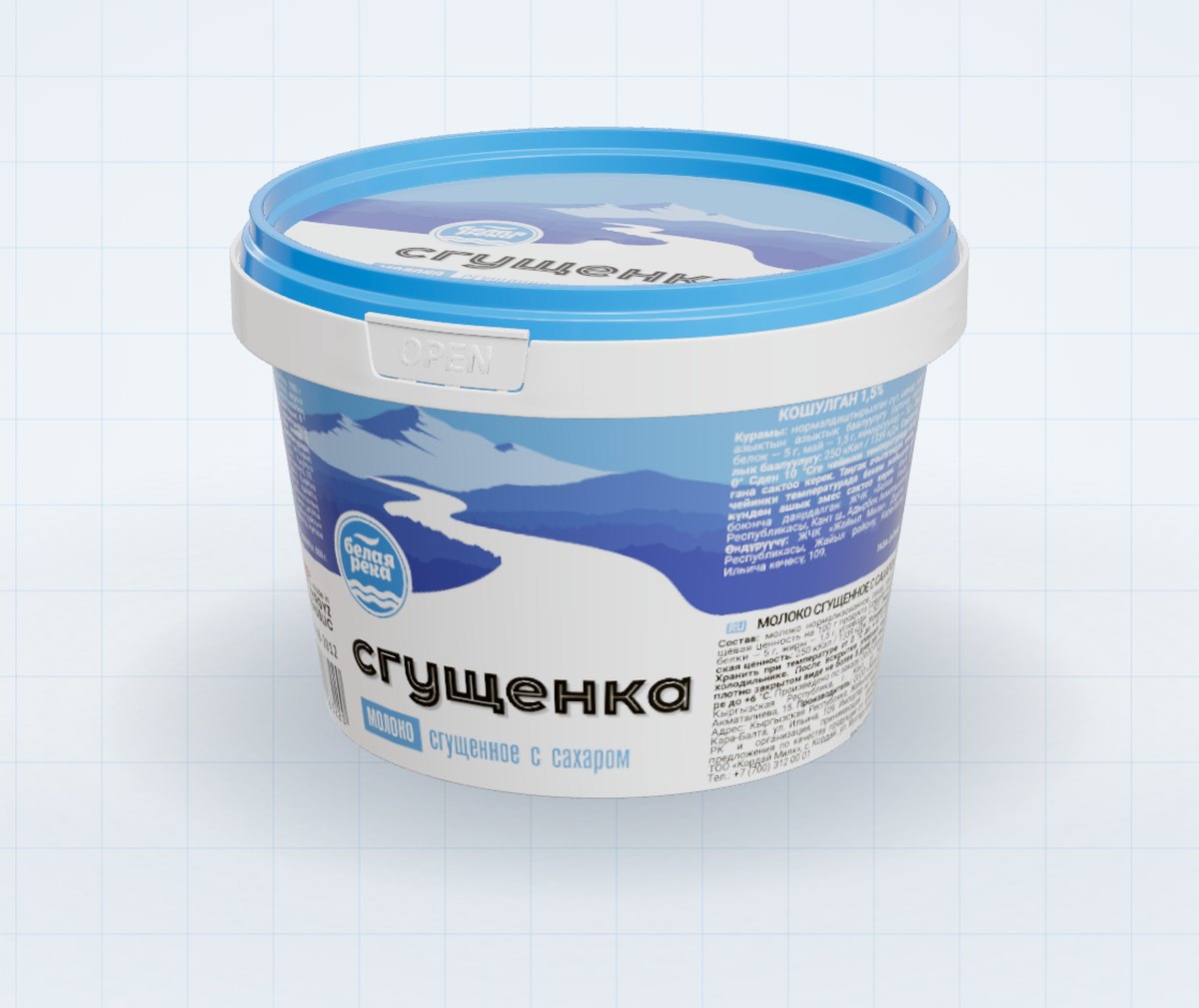
The HTI Group 3D configurator lets you see our packaging in 3D before you order. The demo is open to everyone: 30 products you can rotate, with lids that open and dimensions shown right on the model. In the full version, you color the body and lid, upload your print artwork, and get a PDF for your sales manager.
30 productsin four categories
Any colorunlimited palette
Printingartwork on the model
PDFfor your order
Demo configurator
All our packaging in 3D, with dimensions
The demo works without a code or sign-up. Choose a category and size, rotate the model, and open the lid. The spec sheet is on the left, and all sizes at the same scale are at the bottom.
Full catalogModel not showing? Check your connection and refresh the page.How to use the demoFull version
Two versions
Demo open to everyone, full version unlocked with a code
The demo shows the product. The full version builds your packaging: color, printing, and an order document.
Demo configuratoropen to everyone, no code needed
- 30 models: buckets, medical buckets, containers, and jerry cans
- Rotate, zoom, and auto-rotate
- The lid, valve, and cap open, and the handle lifts
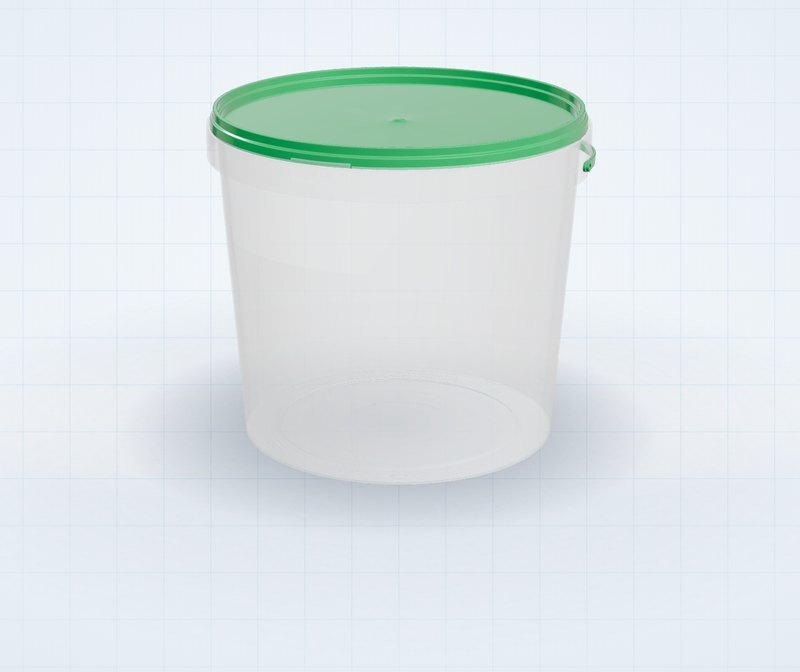
- Plastic and metal handles, clear body
- Dimensions on the model and a product spec sheet
- All sizes at the same scale and an "Add to cart" button
Full configuratorcolor, printing, and PDF with a code from your sales manager
- Everything in the demo
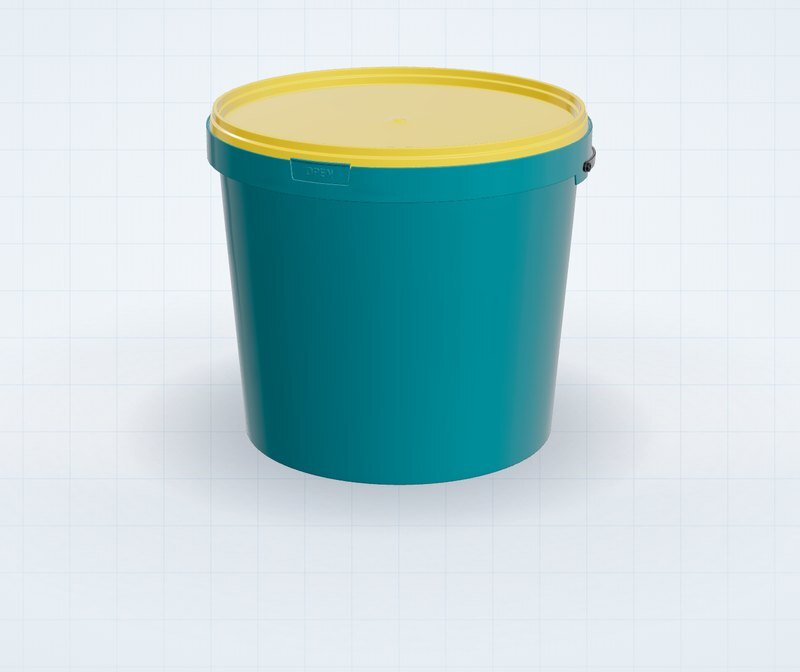
- Body, lid, and handle color: unlimited palette, any shade
- Printing: your artwork on the body and lid, separate for each item
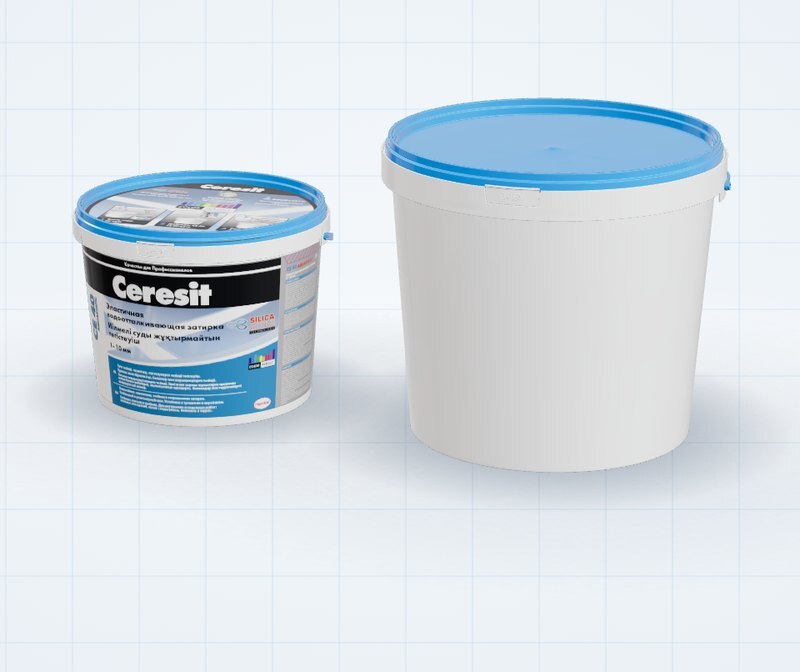
- Two sizes side by side at the same scale
- Pallet and truck loading calculation
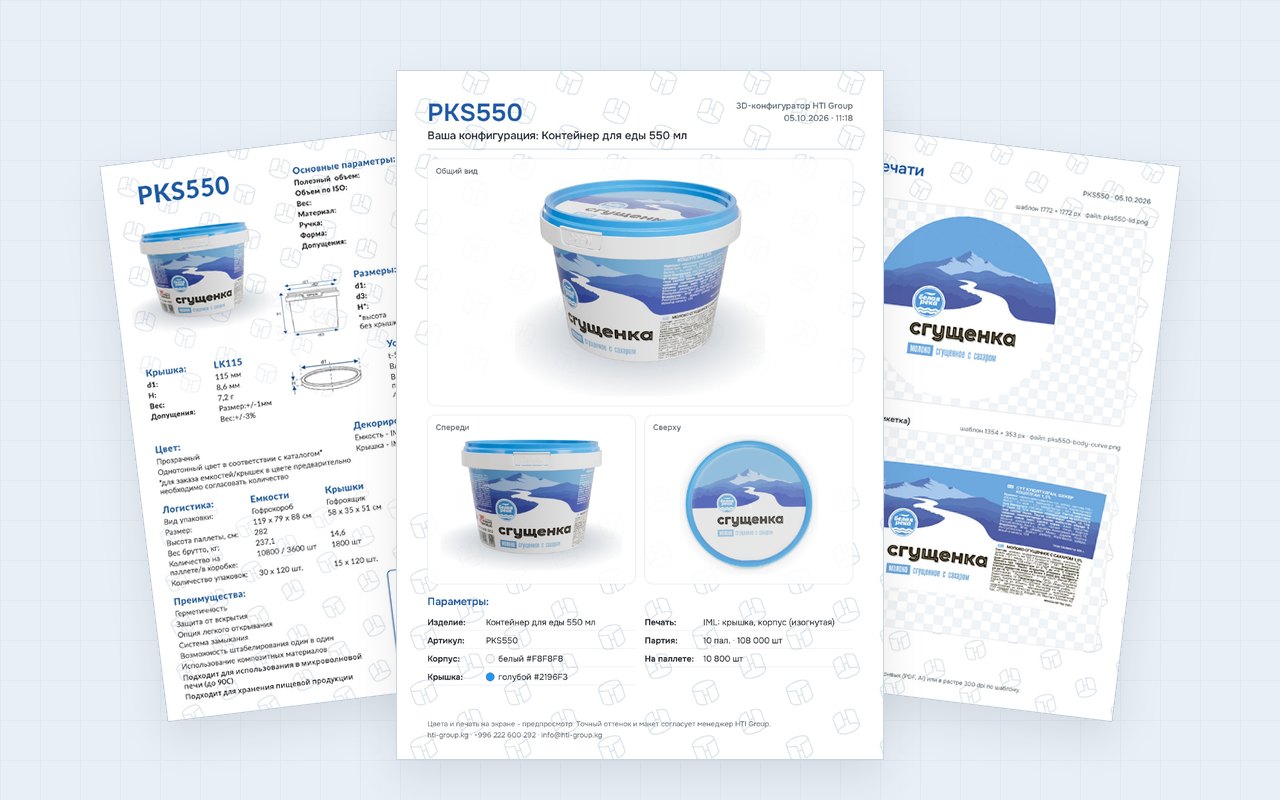
- PDF artwork proof: three packaging views, specifications, and print artwork
How to unlock the full version
Color, printing, and PDF are unlocked by a code. Your HTI sales manager will send it: just tell us which packaging you're looking at. Models, comparison, and pallet calculation work in the full version without a code too.
How to use it
Step by step: on desktop and mobile
Each step comes with a short screen recording. There are four tabs: demo and full configurator, each for desktop and mobile.
Demo: categories and sizes 1Choose a category and size
Four categories are at the top: buckets, medical buckets, containers, and jerry cans. At the bottom is a lineup of all sizes in the category at the same scale. Click the size you need, and the model changes.
- The spec sheet on the left updates: model, dimensions, handle, units per pallet, and tare weight
- The number next to a category name shows how many products it contains
Demo: rotate and zoom 2Rotate and zoom the model
Drag the model with your mouse to rotate it in any direction. The "plus" and "minus" buttons at the top left zoom in and out, and the circular arrow resets the view.
- The button next to them turns auto-rotate on and off
- The mouse wheel over the demo window scrolls the page
Demo: lid and handle 3Open the lid and lift the handle
The buttons below the model open the lid and lift the handle. The "Plastic - Metal" switch changes the handle material if the product comes with both options.
- On medical buckets the valve opens, and on jerry cans the cap does
- The drop button makes the body clear
Demo: dimensions and spec sheet 4Check the dimensions and move on to ordering
The ruler button shows drawing dimensions right on the model. The spec sheet is on the left, with two buttons below it: "Add to cart" adds the item to the site cart, and "Product page" opens the drawing, versions, and calculator.
- On the right: what the full version adds and how to get a code for it
Full version: code entry 1Open the configurator and enter your code
The full version opens on a separate page. Models, comparison, and pallet calculation are available right away. Color, printing, and PDF are unlocked by a code: enter it in the "Code" field and click "Unlock."
- Message a sales manager on WhatsApp to get your code
- You enter the code once: it unlocks color, printing, and PDF at the same time
- The code in the recording is a sample: your HTI sales manager will give you yours
Full version: color 2Choose a color
"Color" tab: select a part (body, lid, or handle) and set its color. The palette is unlimited, so any shade works. The swatches in the grid are presets for quick selection; set your own shade with the eyedropper or a HEX code.
- The drop button below the model makes the body clear
- Your colors are kept when you switch sizes
- Custom colors: agree on the quantity with your sales manager in advance
Full version: artwork upload 3Upload your print artwork
"Printing" tab: upload artwork for the lid and body as PNG, JPG, SVG, or PDF. The label appears on the model instantly. For the body, you can choose a straight or curved label.
- Download a template in the right size from the "Download template" link
- A curved label is prepared on an arc template, so lines sit straight on the tapered wall
- The artwork on the model is a preview: the order uses the PDF artwork proof and your source file
Full version: size and rotation 4Fit the label to the product
Set size and rotation with a slider or a number: type the exact value in the field next to the slider. You can also drag the label right on the model, and the "Center" link puts it back in place.
- Each item has its own artwork: the label stays on the product you applied it to
- Switch sizes, and the other product's print zones stay empty until you upload artwork for it
Full version: comparison 5Compare two sizes
"Compare" tab: choose a second size, and both models appear side by side at the same scale. The table shows the difference in capacity, dimensions, units per pallet, and tare weight.
- The "Make primary" button switches the configurator to the second size
- To compare up to four items at once, use a separate tool: bucket comparison
Full version: pallets 6Calculate pallets and a truck
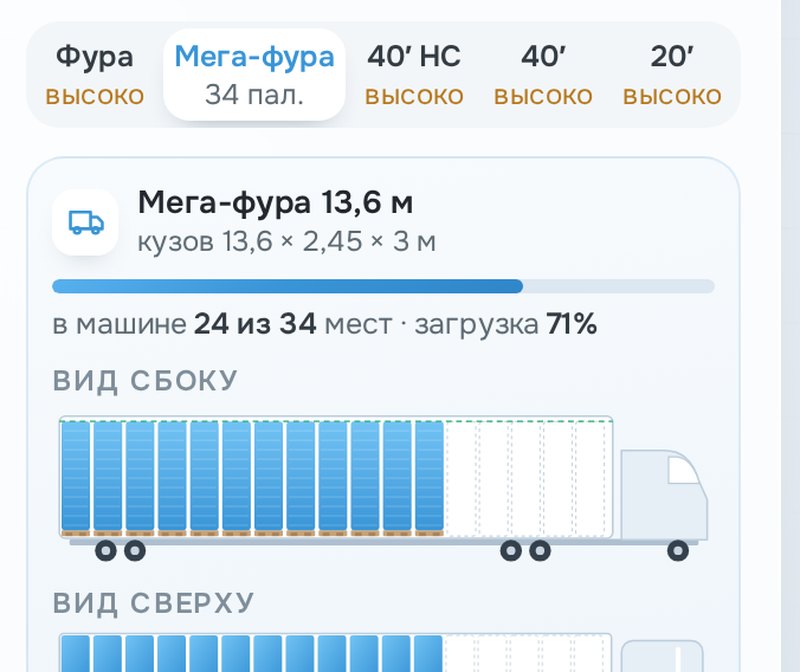
"Pallets" tab: set your order with the slider or type a number, in pallets or units. The configurator shows how many units that is, the tare weight, and how many spaces the order takes in a truck.
- Quick buttons: 1, 5, or 10 pallets, or a full truck
- For a mixed load of different packaging, use the order calculator
Full version: PDF artwork proof 7Download the PDF artwork proof
"PDF" tab: check the summary (product, colors, printing, order) and download the file. It contains a catalog page, three views of your packaging, and the print artwork. You can also send the PDF to your sales manager on WhatsApp from here.
- Colors and printing on screen are a preview: your sales manager confirms the exact shade and artwork
Demo on mobile: categories and sizes 1Choose a category and size
Categories are at the top of the screen, with a strip of sizes below them. Tap a category, then a size: the model changes, and the product name and dimensions below it update.
- Swipe the size strip sideways
- The number next to a category shows how many products it contains
Demo on mobile: rotation and details 2Rotate the model, open the lid
Swipe sideways on the model to rotate it; swipe up or down to scroll the page. The buttons in the bottom row open the lid, lift the handle, show dimensions, and make the body clear.
- The circular arrow in the bottom row resets the view
- The "Plastic - Metal" switch changes the handle if the product comes with both options
Demo on mobile: spec sheet and cart 3Open the spec sheet and add the product to cart
The "Spec sheet" button expands the product card: model, dimensions, handle, units per pallet, and tare weight. "Add to cart" adds the item to the site cart. The "Full version with a code" banner explains what a code unlocks.
- The spec sheet links to the product page with the drawing and calculator
Full version on mobile: size and code 1Choose packaging and enter your code
The "All sizes" button expands the categories and the size strip. Choose a product, open the "Color" tab at the bottom, enter your code, and tap "Unlock."
- Message a sales manager on WhatsApp to get your code
- The arrows next to the name switch to nearby sizes
- The code in the recording is a sample: your HTI sales manager will give you yours
Full version on mobile: color 2Rotate the model and choose a color
Rotate the model with your finger. The buttons at the edges of the screen open the lid, lift the handle, and make the body clear. In the "Color" tab, select a part and a color; the rainbow button with a plus opens the full palette.
- The swatches in the grid are presets; set your own shade in your phone's color picker
- The "Reset" button restores the original colors
Full version on mobile: printing 3Upload your print artwork
"Printing" tab: tap "Upload artwork" and pick a file from your gallery or phone storage. Swipe the panel to scroll: the body is below the lid. Set size and rotation with a slider or a number.
- Drag the label with your finger right on the model
- Each item has its own artwork: print zones on another size stay empty
Full version on mobile: comparison and pallets 4Compare sizes and calculate pallets
The "Compare" tab puts two sizes side by side and shows the difference in a table. The "Pallets" tab calculates your order: drag the slider or type the number of pallets or units.
- Below: tare weight, truck loading, and a truck body diagram; swipe the panel to scroll
- Quick buttons: 1, 5, or 10 pallets, or a full truck
Full version on mobile: PDF artwork proof 5Download the PDF artwork proof
"PDF" tab: a summary of the product, colors, printing, and order, with three packaging views below. The "Download PDF artwork proof" button builds a three-page file, and "Send to manager via WhatsApp" opens a chat with a ready-made message.
- On an iPhone, the file opens in a new tab; save it with "Share"
These recordings were made in the configurator itself. The labels in them are sample designs: your own artwork loads in their place. Click a recording to view it full size.
After 3D
What to do with your chosen model
The model helps you see the product. Ordering decisions come down to numbers, and the site has separate tools for those.
Compare up to four items
Dimensions at the same scale, tare weight, handle, and units per pallet side by side in the bucket comparison.
Calculate your order
The order calculator converts units into pallets and plans the truck load, including mixed loads.
Find packaging for your product
46 packaging by product pages: which size and handle to choose for honey, sour cream, paint, or animal feed.
Learn about IML printing
Which items we print on and how to order printed packaging: see our page on IML printing.
Questions and answers
Frequently asked questions about the 3D configurator
Demo and full version, access code, artwork, and ordering.
Three-dimensional models of all 30 of our products: buckets, medical buckets, food containers, and jerry cans. In the demo, you can rotate the model, open the lid, and check the dimensions. The full version adds color, printing with your artwork, size comparison, pallet calculation, and a PDF artwork proof.
The demo shows the product as is and works without a code. The full version builds your packaging: body, lid, and handle colors, your print artwork on the model, and a PDF for ordering. These three sections unlock with a code from our sales manager.
Message an HTI sales manager on WhatsApp or call +996 222 600 292. Tell them which packaging you're looking at, and they'll give you a code. You enter it in the configurator the first time you open color, printing, or PDF.
Yes, in the full version. On the "Printing" tab, upload artwork for the body and lid, and it appears on the model right away. Set size and rotation with a slider or a number; the artwork stays on the item you applied it to.
PNG, JPG, SVG, and PDF. A template with the exact label size for the selected item is available via the "Download template" link on the "Printing" tab.
Yes, both the demo and the full version. Rotate the model with your finger; the full version's tabs sit at the bottom of the screen, and the "All sizes" button opens the size list. The guide above has two separate mobile tabs with screen recordings.
Any color you like: the body, lid, and handle can be any shade. The swatches in the configurator are presets for quick selection; set your own shade with the eyedropper or a HEX code. Your sales manager will agree on the quantity for a custom color with you in advance.
Send it to our sales manager: the PDF shows them the item, colors, print artwork, and order size. Colors and printing on screen are a preview; our sales manager confirms the exact shade and artwork with you separately.
In the demo, click "Add to cart" or open the product page. In the full version, download the PDF artwork proof and send it to our sales manager. Our sales manager confirms price, lead time, and delivery: +996 222 600 292.
Quote
Picked a model? Let's calculate your order
Tell us the size and quantity: our sales manager will calculate the pallets and quote a price for your order.